Have you ever thought about leaving your wallet at home and using your phone instead? A digital wallet helps you manage your money in a simple, modern way. It's like having your cards, coupons, and rewards all together in one easy-to-use app.
In this guide, you'll learn how to download the app, add your payment details, and start paying with just a tap. It’s a smooth switch from lugging around cash and plastic to using a secure tool that keeps your finances safe and your life simpler.
Isn’t it cool how a small change can make everyday transactions so much easier? Give it a try and see how it lightens your load!
Practical Steps to Use a Digital Wallet
A digital wallet is like carrying your everyday wallet in your phone. It keeps your cards, gift cards, coupons, and rewards organized and secure in one simple app. You can pay in stores without touching cash or cards, and even shop online. Popular choices are Apple Pay, Google Pay, Samsung Pay, and PayPal. With quick checks by your bank and fast processing, your money stays safe while you breeze through daily payments.
Installing Your Digital Wallet
First, download the wallet app from your phone's official store. Once it's ready, double-check that your phone meets all the app’s needs and give it any network permissions it asks for. Then, set up a layer of security with fingerprint, face unlock, or a password. This extra step really helps keep your information locked up tight. You might even see a little prompt saying, "Enable fingerprint unlock for added security," which tells you it's all set for safe transactions.
Adding Payment Methods
After the app is installed, open it up and look for an option to add a card or bank account. You can simply scan your card or type in the details manually. Linking your bank account securely is key, and you may need to do a small test charge or enter a one-time password (OTP) to verify that everything’s in order.
Executing Your First Digital Payment
When you're ready to pay, just find a contactless terminal or an online buy button in the app. In a store, tap your phone to the terminal. For sending money to a friend, use a QR code scan. Online, choose the wallet option at checkout.
Here’s a quick step-by-step guide:
| Step | Action |
|---|---|
| 1 | Open your app and verify your identity with a fingerprint or passcode. |
| 2 | Select “Add Card” or “Link Bank Account.” |
| 3 | Enter your card details or log into your bank account. |
| 4 | Finish the verification and choose your default payment method. |
| 5 | Find a contactless terminal or tap the online pay button. |
| 6 | Authorize the payment by tapping, scanning a QR code, or using MST. |
| 7 | Check the transaction confirmation and save your digital receipt. |
Using a digital wallet is as simple as that. Remember, each step adds a little more safety and ease to your day-to-day payments. Enjoy how effortless managing your money can feel with just a few taps on your phone.
Essential Security Measures for Digital Wallet Use
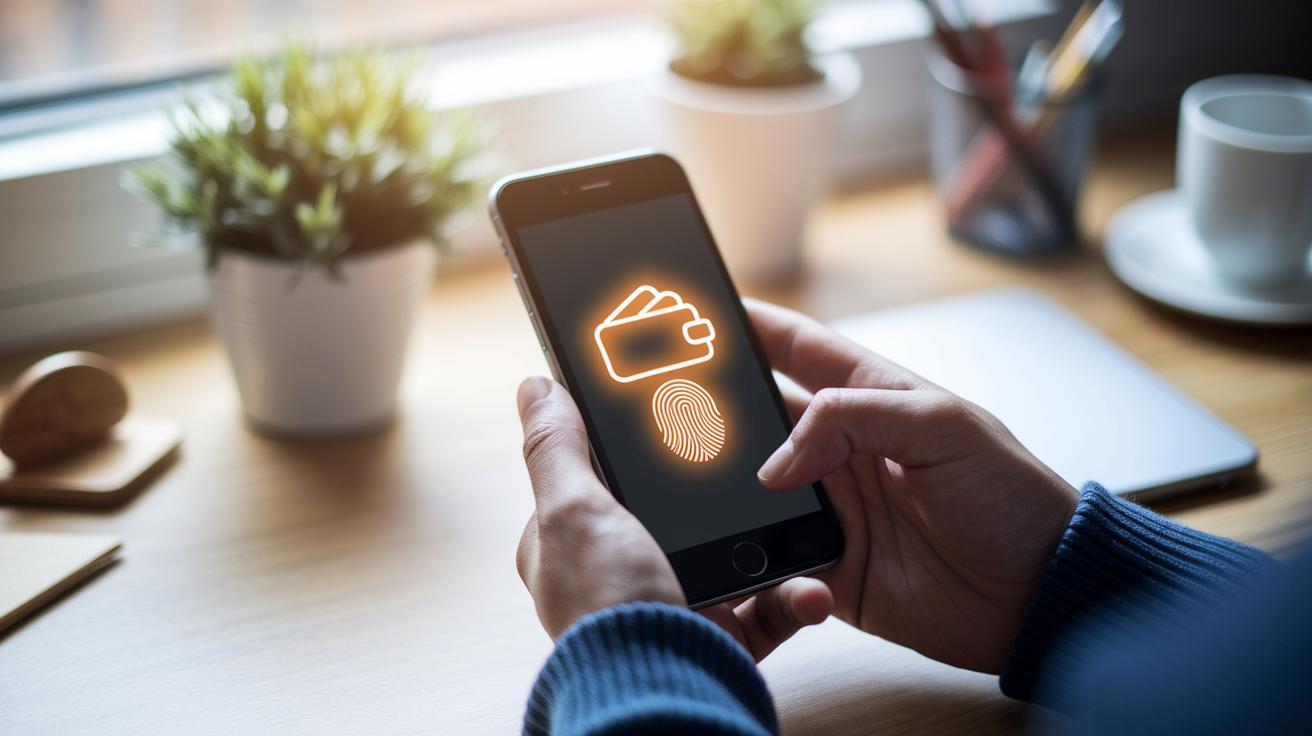
Keeping your digital wallet safe is really important. It stops unwanted eyes from getting your payment info, personal details, and funds. Think of it like locking up your favorite treasure chest so only you can get to it. Plus, strong security can help you catch any funny business early on.
Make sure you set up a lock that works for you. For instance, turn on fingerprint or face recognition and create a strong password. Adding extra steps for every transaction, like two-step checks, makes it even harder for anyone else to sneak in.
Also, check that your wallet app scrambles your card details into secret codes. In other words, ensure it uses encryption (it turns your info into a secret language) and tokenization (it turns details into unique codes). This extra layer of safety really pays off.
Remember to keep your digital wallet and your device up-to-date with the latest software. This small step can stop many potential issues. And don’t forget to keep an eye on your transaction alerts, turning on instant push notifications helps you stay in the loop.
Finally, take a moment now and then to review your connected cards and bank accounts. If anything smells fishy, report it right away. Keeping your money safe is worth a little extra time each day.
Managing Funds and Tracking Transactions in Your Digital Wallet
Your digital wallet features a neat dashboard that shows you all your money details in one place. It’s like having a quick peek at your favorite piggy bank, where you can see your balance, recent payments, and even pull up your loyalty cards, receipts, or gift cards right away.
It’s super easy to check your balance. Digital wallets show you a live list of your transactions, and they let you know that funds usually settle in one to three days after you make a payment. This means you can quickly confirm how much money you have before you spend it, helping you keep your spending in check.
You can also keep your digital receipts and loyalty programs nicely organized in the app. Grouping your expenses is a bit like sorting coins into a jar, it makes budgeting feel familiar and manageable. For example, receipts might be neatly classified into groceries, dining, and transportation, which makes reviewing your monthly spending a lot easier.
And if you’re looking for even more control, you can export your transaction data to external budgeting apps or even a simple spreadsheet. This step lets you spot spending trends and fine-tune your budgeting strategy, helping you piece together a clear picture of your overall finances.
Comparing Top Digital Wallet Providers and Their Features
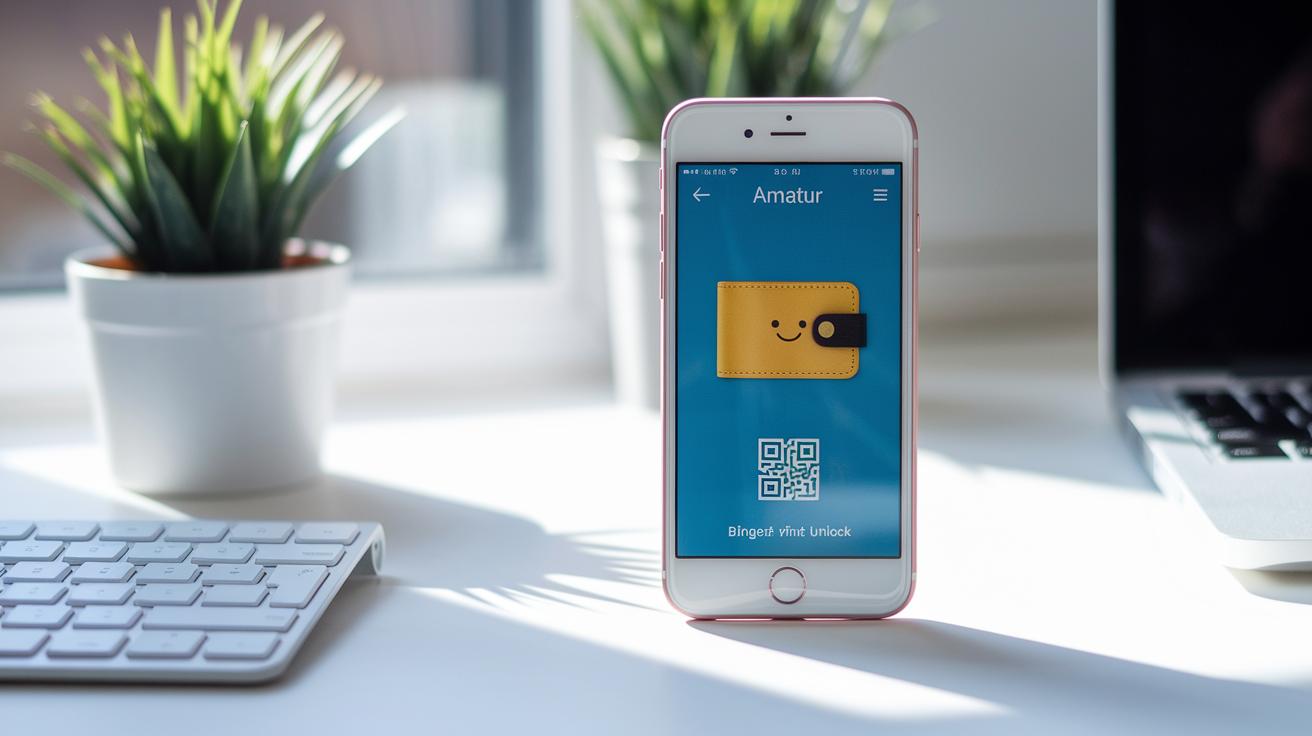
When picking a digital wallet, look for one that feels friendly and works well every time you pay. You know how important it is when an app is simple and reliable. Digital wallets let you pay in different ways, like using NFC (that’s near-field communication for contactless payments), QR codes (those square pictures you scan), or even MST (a tech that mimics a card swipe). Also, check the fees. Many charge an amount similar to what you’d expect with a regular card, so it’s easy to plan for. Some even add cool extras like rewards or extra security, such as using your fingerprint to unlock your wallet.
| Provider | Payment Tech | Fee Structure | Unique Features |
|---|---|---|---|
| Apple Pay | NFC | Standard card fee | Face ID, Wallet integration |
| Google Pay | NFC, QR | Standard card fee | Google account sync |
| Samsung Pay | NFC, MST | Standard card fee | Magnetic Secure Transmission |
| PayPal | Online, QR | Standard PayPal fee | P2P transfers, buyer protection |
When you look closer, each wallet shows something special. Apple Pay has a sleek look and uses Face ID so only you can access it. Google Pay blends right into your Google setup and offers both NFC and QR methods for payment. Samsung Pay is smart in a different way; its MST option means it can work at even older payment terminals. And if you often shop online or send money, PayPal stands out because of its buyer protection and simple person-to-person transfers.
When you tap your phone, these wallets all aim to speed up the checkout. Their fee plans are clear, so you know exactly what costs to expect. Plus, extras like loyalty rewards can add extra value to every transaction. In the end, the best choice comes down to which wallet feels natural and fits best with your everyday routine.
Advanced Digital Wallet Functions: Peer-to-Peer and International Payments
Peer-to-peer transfers are simple and friendly. When you want to send money to a friend, just open your digital wallet and tap the option to send money. You can easily scan your friend’s QR code or pick their name from your contacts. Sometimes you'll set a spending limit so your friend can only receive a certain amount. The wallet might give you a push notification asking, “Confirm transfer of $50,” so you know your money is going exactly where you want it. It feels a lot like organizing coins in your favorite jar, clear and under control.
International transactions work in much the same simple way. If you’re sending money abroad or buying something from another country, switch on the multi-currency option in your settings. This lets you see the latest exchange rates right in the app, much like checking the time before starting a race. Always review the small fees for currency conversion before you confirm. The wallet takes care of your data with secure encryption, and you’ll see your funds arrive in one to three days. It’s a smooth process that helps you feel safe even when you’re dealing with money across borders.
Troubleshooting Common Digital Wallet Issues and Updates

If your digital wallet isn’t working right, start by checking for updates. An old version of the app or your device’s operating system might be behind payment troubles, glitches, or even login fails. Updating both the wallet and your phone can often fix these bugs. Just head into the app’s settings for instructions, and you might find that a quick refresh makes everything run smoothly.
When you bump into transaction errors or problems signing in, it could be your network acting up. Sometimes, unstable Wi-Fi or mobile data, or even wrong network settings, can lead to errors like card token issues or failed authentication pop-ups. Give your router a quick restart, turn your connection off and on again, to see if that clears things up.
Still stuck? Don’t worry. It’s a good idea to get in touch with tech support. Most digital wallet providers have in-app help or a list of FAQs that show you how to log errors, and options like email or chat can give that extra bit of assistance when you need it. Letting them know exactly what error message you see will help them solve the problem faster so you can get back to making secure transactions.
Best Practices and Tips for Efficient Digital Wallet Use
When setting up your digital wallet, try to make it truly yours so everyday transactions feel smooth. You can move around icons and set up quick-access buttons for the things you use most, maybe even a handy "Pay Now" button right on your home screen. These little tweaks not only save you time at checkout but also give your wallet a personal touch.
For added peace of mind, enable transaction alerts and set spending limits. Imagine getting a friendly push notification after every purchase, like "Payment of $20 approved." With these notifications and limits, you'll know exactly when you're nearing your budget, helping you keep your spending in check.
You can also link your loyalty cards and reward programs right inside your app. Many digital wallets let you add coupons, special points, or digital vouchers all in one place. This way, you have your discounts gathered neatly, saving you time when you're ready to check out.
And don't overlook the smart features of modern fintech. Some digital wallets use simple AI tools that share easy tips on managing your money better. They might even suggest lowering your spending based on what you usually buy, so you can save more every day.
Final Words
In the action, we broke down the basics of a digital wallet and how it keeps your money safe and easy to use. We stepped through installing your wallet, adding payment details, and making your first digital payment. You got a clear look at security tips, fund management, and even comparing top providers. By following our guide on how to use a digital wallet, you'll have the confidence to make smart, secure moves that brighten your financial future. Keep exploring and enjoy the simplicity of managing your money.
FAQ
Frequently Asked Questions
How do I use a digital wallet on my smartphone (iPhone or Android)?
Using a digital wallet on your smartphone means downloading an official app from the store, enabling network access, and adding your payment methods, which lets you make secure, contactless transactions.
What is a digital wallet and how can beginners use one?
A digital wallet is a secure app that stores your cards, coupons, and tickets. Beginners should download a trusted app, register their account, and add their payment methods to start using it easily.
How do I use a digital wallet for online transactions?
Using a digital wallet online involves selecting your stored payment option at checkout and verifying your identity. This process allows you to complete transactions without entering your card details manually.
How do I pay with my digital wallet at ATMs and checkout?
Paying with your digital wallet at ATMs or checkouts means using a digital card linked to your account, then tapping or scanning a code. You verify your identity for secure transactions at physical and online terminals.
What are some examples of digital wallet apps, including Bank of America’s option?
Examples of digital wallet apps include Apple Pay, Google Pay, Samsung Pay, and Bank of America’s digital wallet. These apps store your payment information securely and facilitate easy, contactless payments.