
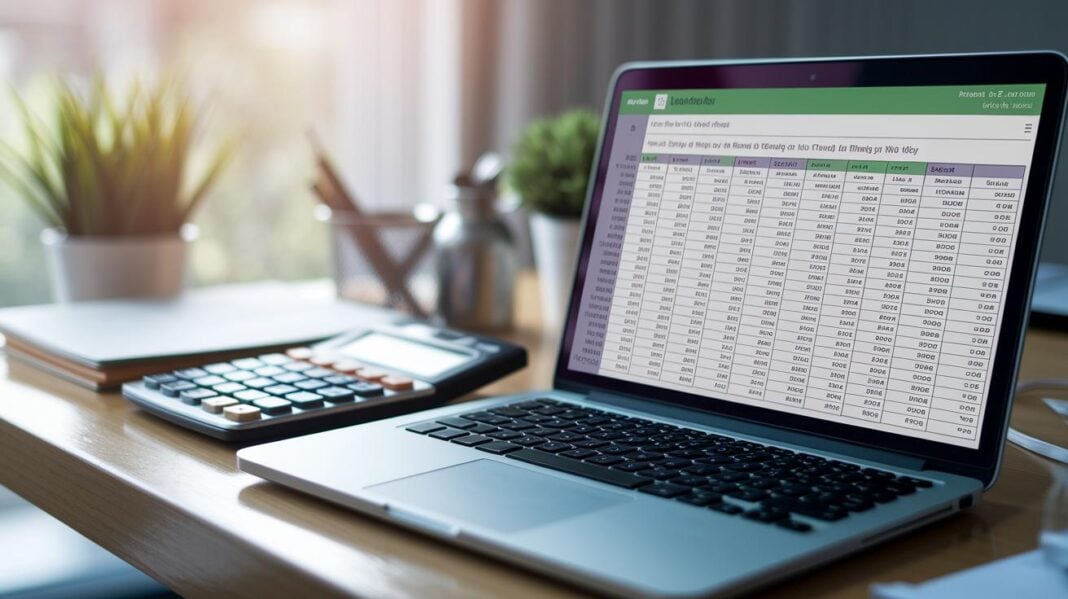
Ever feel lost tracking where your money goes? Budget Bliss is a friendly Excel tool that helps you keep an eye on your cash.
This handy template lets you jot down your daily spending so you can see your monthly habits right away. It even uses built-in formulas that work like a puzzle, fitting your expenses neatly together.
Using Budget Bliss makes your budget clear without any extra hassle. It's designed to be smart and simple, helping you feel confident about handling your money.
Excel Template for Expense Tracking: Budget Bliss
Budget Bliss is a handy Excel expense tracker built just for you. This easy-to-use workbook comes in one .xlsx file that neatly gathers all the tools you need to keep your money in check. You can quickly jot down daily spending, watch where your cash goes, and manage your budget without any fuss. It’s great for beginners and those who already know their way around spreadsheets, it even does the math automatically so you can focus on what matters.
Inside, you’ll find separate sheets for the date, a brief description, spending category, amount spent, and payment method. It also comes with built-in formulas like SUM and SUMIFS (which, in simple terms, add up totals and monthly trends) so you can see your spending habits at a glance. With sample data already loaded, clear cell formatting, and dropdown menus, entering your expenses feels as easy as pie.
Ready to get started? Just download the .xlsx file, unzip it on your computer, and follow the step-by-step instructions to set things up your way. And if you prefer watching a guide, there’s an optional video tutorial to make the setup even simpler. Soon enough, you’ll be tracking your expenses and feeling in control of your budget, one entry at a time.
Customizing Your Personal Expense Tracker Spreadsheet
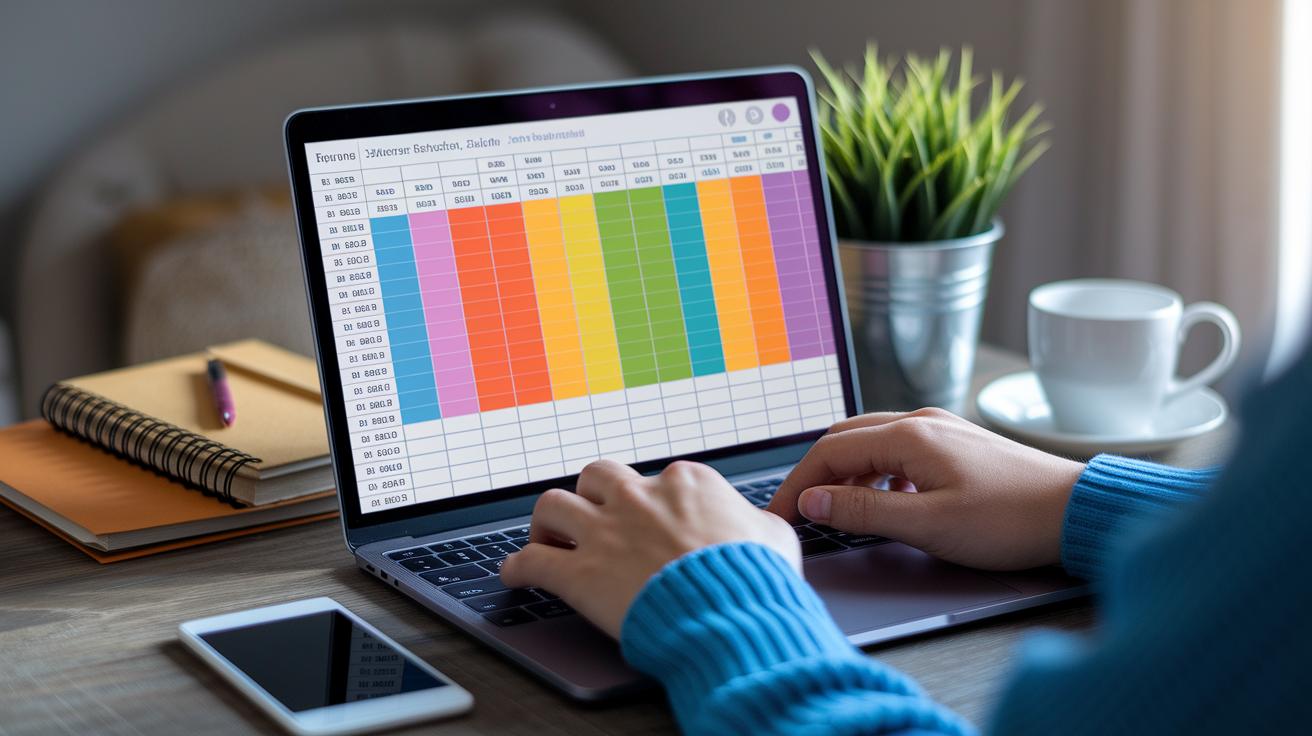
Customizing your expense tracker gives it a personal touch, turning it into your very own finance toolkit. When your workbook reflects how you actually spend your money, it becomes much easier to see where your dollars are going. By adjusting categories, formulas, and even the way your data looks, you gain better control of your budget and can notice spending trends you might have missed before.
Editing Categories
It only takes a few simple steps to update your expense categories. The dropdown menu lets you add, rename, or delete items so they match your spending habits. For example, if you sometimes mix up dining out with takeout, try splitting the broad “Food” label into separate “Restaurants” and “Takeout” categories. Just click the dropdown arrow, choose “Edit,” and change the label to fit your needs.
Adjusting Formulas
Tweaking formulas lets your spreadsheet work exactly the way you want it to. Look out for functions like SUM, SUMIFS (which adds up numbers based on specific conditions), and IF. You can modify a SUMIFS formula to add up totals for a custom date range or a specific category. Imagine you want to check how much you spend on fun activities during the summer, adjust the formula for summer months and see your results change. Small tweaks can go a long way!
Applying Conditional Rules
Conditional formatting makes your tracker even more helpful by giving you visual alerts when spending gets too high. You can set a rule that changes the color of a cell if expenses go over a set limit. For instance, set a rule so any cell turns red when it exceeds your monthly budget. This color cue helps you spot overspending right away.
| Customization Area | Description | Example |
|---|---|---|
| Editing Categories | Updating expense types to match real spending habits | Changing ‘Food’ to ‘Restaurants’ |
| Adjusting Formulas | Modifying functions to reflect specific date ranges or totals | Edit SUMIFS for summer expenses |
| Conditional Formatting | Applying rules that highlight when expenses exceed preset limits | Cells turning red at overspend |
Effective Daily Excel Expense Record Sheet Practices
Recording your expenses right when you make a purchase is super important. It’s like jotting down each coin as it leaves your pocket, so you don't forget even the small costs that add up over time. When you log your spending on the spot, be it a quick coffee, a meal, or a gas fill-up, you keep your money tracker honest and clear.
Make sure you include simple details like the date, the place you shopped, and how you paid. Assign each cost to the right category, like "food" or "transport," so later on, reviewing them feels as smooth as reading your favorite book. I always check my records once a week; it's like giving my budget a little health check to catch any surprises early.
And don’t skip backing up your data! Saving copies on cloud services like OneDrive or Google Drive means your records stay safe even if your computer has a hiccup. This extra step keeps your expense log secure and always ready when you need it.
Generating a Monthly Spending Report in Excel

Start by opening your transaction sheet and picking out your expense data. Then click on Insert and choose PivotTable. In the box that appears, set your data range to include the date, category, and amount columns. Next, move the category field into the Rows area and the amount field into the Values area. This setup groups your totals by category, giving you a clear picture of your monthly spending. You can also add date fields as filters so you can easily look at the month you need.
Once your PivotTable is ready, add a Pie or Column chart with Excel’s built-in chart tools. For a more interactive view, add slicers by linking the date or category fields to your PivotTable. That way, when you adjust the date slicer, the summary updates automatically to show the spending trends for that month, offering a visually engaging breakdown of your expenses.
Automating Excel Expense Reports with Formulas and Macros
Dynamic formulas like SUMIFS, IF, and XLOOKUP work together to keep your expense report fresh and up-to-date. SUMIFS adds up amounts for a specific date range or expense type, while IF gives you a friendly nudge when you go over your budget. And XLOOKUP quickly fetches the right budget numbers so you can compare them side by side. For example, a formula like =SUMIFS(AmountRange, DateRange, ">=1/1/2026", DateRange, "<=1/31/2026") automatically updates your January spending every time new data comes in.
If you want to make things even easier, consider adding a VBA macro. It can refresh your data and export a neat summary as a PDF without any extra work from you. All you need to do is open the VBA editor, insert a new module, and paste in the code. Typically, a snippet might start with Sub RefreshAndExport(), automatically updating your formulas and then saving a PDF of your summary sheet. It’s a smart way to cut down on manual tasks.
Don’t forget about setting up data validation either. Using Excel's Data Validation tool, you can limit cells in the Amount column to only accept numbers. Plus, adding drop-down menus for your expense categories keeps your data neat and error-free. This little extra step makes your expense tracker even more reliable.
Top Free Excel Expense Management Tool Downloads

Have you ever wished budgeting was easier and cost-free? These free Excel tools do just that, they help you keep an eye on your spending without charging you a cent. They come packed with smart features like automated approval steps, data syncing, and even a bit of AI that magically turns raw numbers into easy-to-read charts. We picked these tools because they're simple to use, easily integrate with other systems, and let you customize as you go. With these downloads, you can dive right in and tweak your spending plan as your needs change. Even if you're just starting out, you'll find their designs intuitive and clear.
- Smartsheet Expense Report Template – comes with an approval workflow.
- Tiller Spending Trends Dashboard – automatically syncs with your bank.
- NerdWallet Budget Excel – built around the easy 50/30/20 rule.
- Vertex42 Monthly & Annual Trackers – features customizable sheets.
- Excelmatic AI Tool – uses natural language for automation.
It might help to try a few different ones to see what fits your personal expense tracking style best. Each tool has its own unique features, whether you're a beginner or a seasoned pro. Take your time exploring each template, playing with dynamic formulas and automated data feeds, and notice which one feels right in your daily routine. These free tools can truly transform how you manage your money, making budgeting feel straightforward and stress-free while giving you clear insights into your financial habits.
Final Words
In the action, the expense tracking guide shows how to set up your finances using a clear Excel template for expense tracking. It covers everything from file layout and customization to daily entries, monthly summaries, and even automating tasks. Each section shares simple steps that help build a steady budgeting routine. This guide offers practical tools that make managing money feel straightforward. Enjoy building a habit of smart spending and watch your financial confidence grow!
FAQ
What is the free excel template for expense tracking?
The free excel template for expense tracking provides a ready-to-use workbook with pre-built formulas, clear formatting, and dropdown menus to help you easily record and manage your spending.
What features does the best excel template for expense tracking offer?
The best excel template for expense tracking offers built-in SUM and SUMIFS formulas, editable categories, and step-by-step instructions, making it simple to track, update, and review your expenses.
How can I download the monthly income and expense Excel sheet free download?
The monthly income and expense Excel sheet free download is available online; just click the link, unzip the file, and follow the easy setup instructions to start tracking your money.
What does the monthly personal expense tracker Excel template include?
The monthly personal expense tracker Excel template includes pre-set columns for date, description, category, and payment method, along with sample data and guided formulas to help you manage your expenses.



